 Takelight
Step guides for Edge
Click through a task. Get the step-by-step guide.
No account. No watermark. Made on your computer. Takelight turns your clicks into a numbered guide with a picture for each step. Nothing is uploaded.
Needs Edge 116 or newer. No account.
A written guide from your clicks
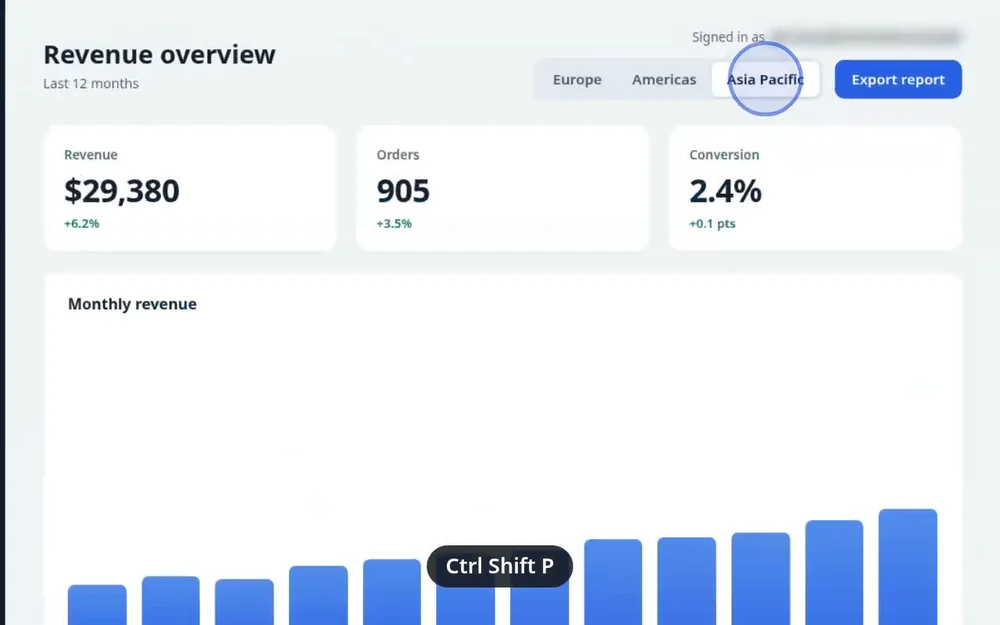
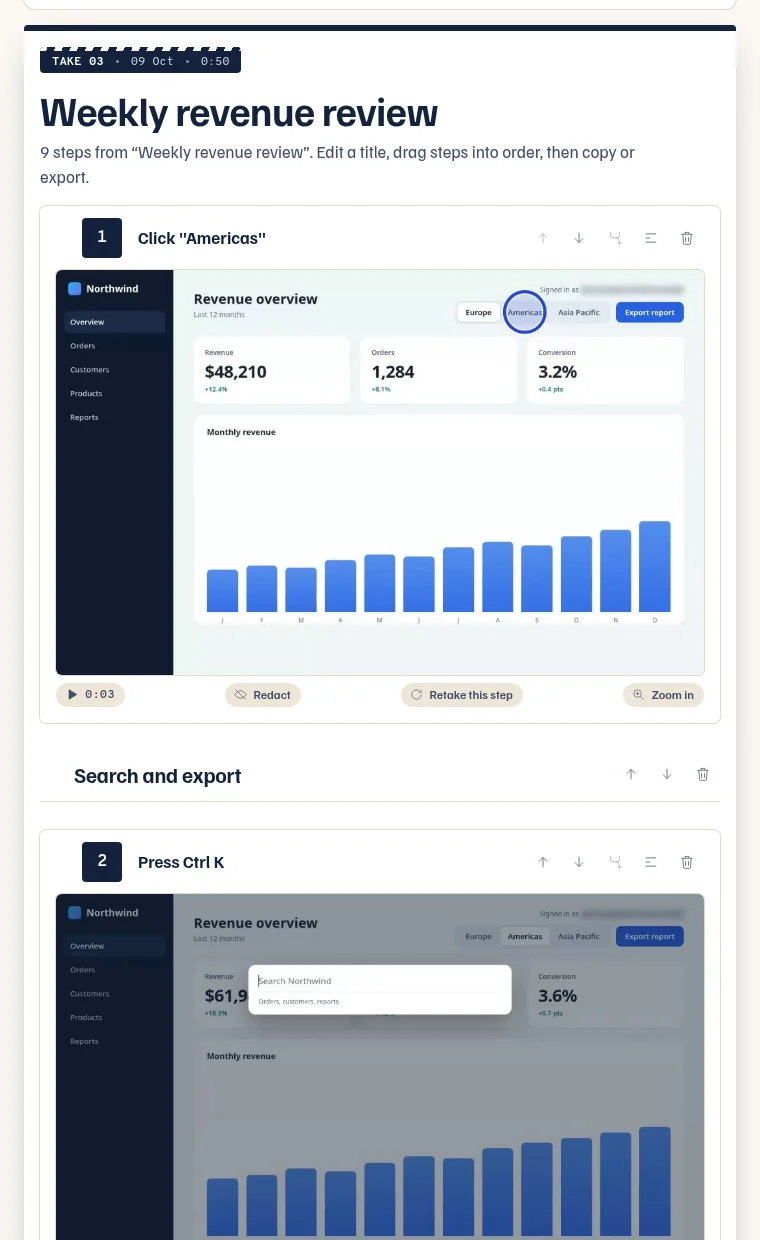
Press Start guide, click through the task, press Stop. Every click, typed field and page change becomes a step, with a screenshot and a title made from what you clicked.
- Titles such as Click Save, Type in Email and Go to example.com/billing. What you type is never read or kept
- Edit titles, merge or delete steps, and drag them into order
- Crop, zoom, box, arrow, blur and text on every picture, with undo
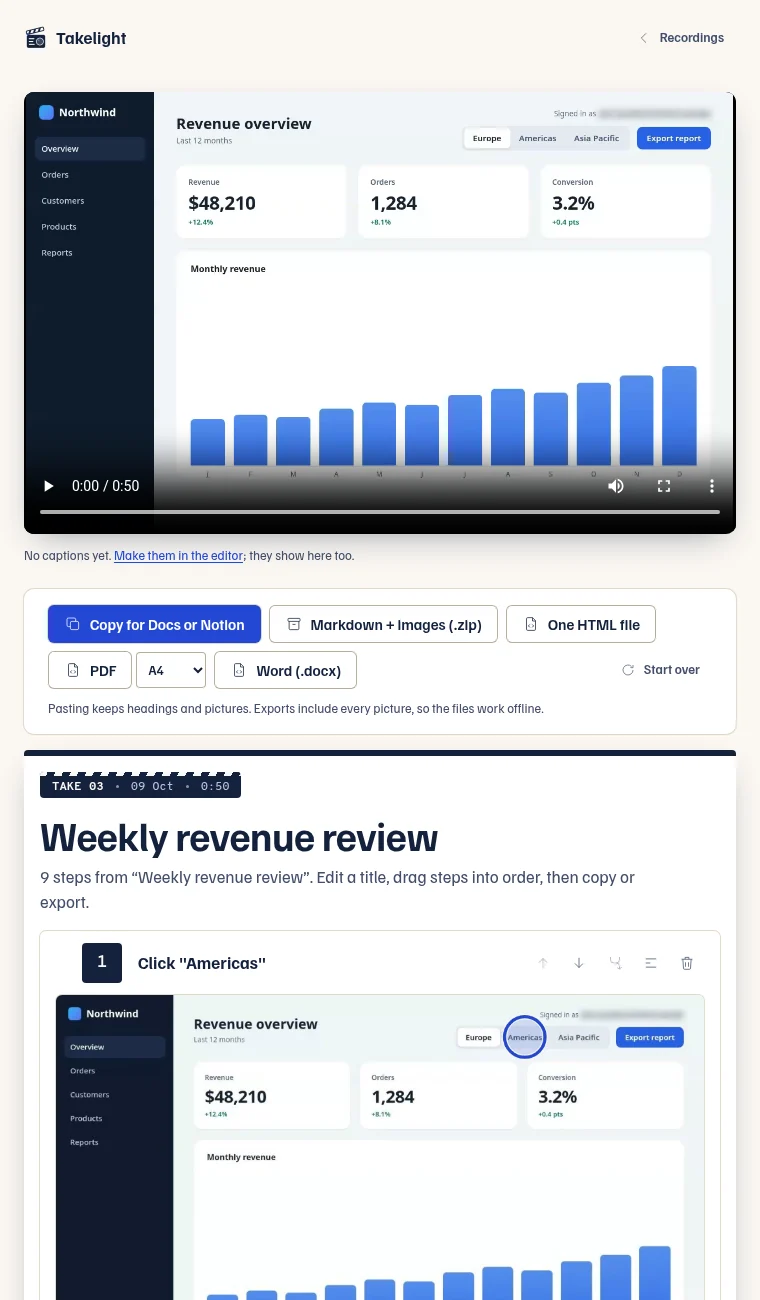
- Copy up to 5 steps for Google Docs or Notion; Pro copies any length
- Export one HTML file, with every picture inside
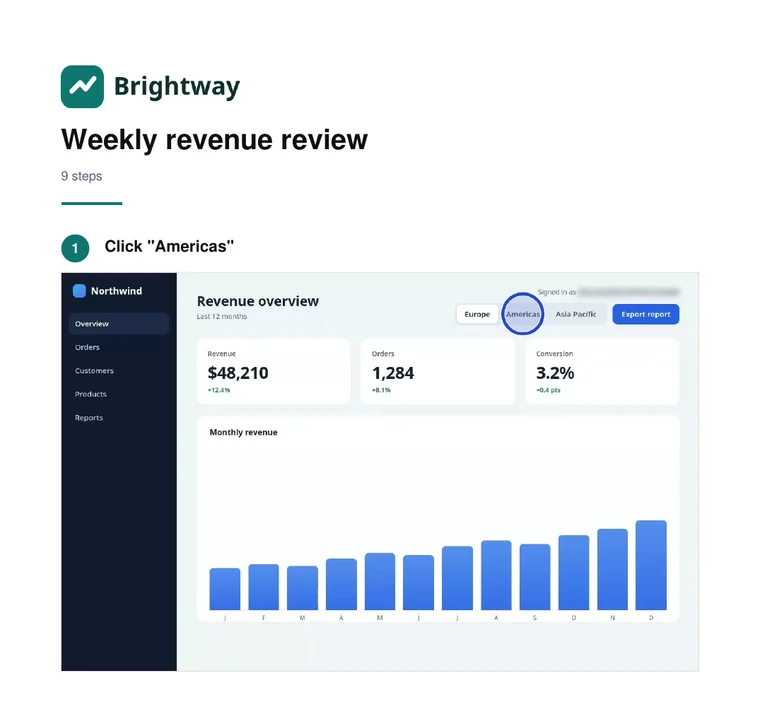
- Export a Word file or a PDFPro
- Your logo, accent colour and footer on guidesPro
- Free keeps ten guides; Pro keeps any numberPro
- Password, email, phone and fields marked for card autofill are boxed out of the pictures
- Retake one step of a video guidePro
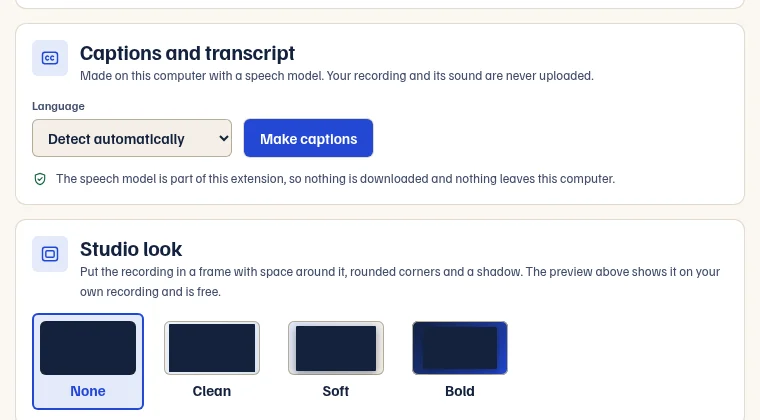
Captions made where the recording is
A speech model ships inside the extension. There is nothing to download and no account, and the sound of your recording never leaves your computer.
- A transcript with timestamps, and .srt and .vtt files
- Captions burned into the exported video, word by word, in your colour, size and positionPro
- The language is detected, or you pick one of 26. Accuracy depends on how clear the sound is
- The first time, the model takes a moment to load
Blur and click rings, drawn into the video
Start from the toolbar with Record this tab, and the recording follows your clicks. No picker, and the extension runs on no site until you start.
- Blur sensitive info: emails, phone numbers, IBANs, card numbers, API keys and password fields are blurred in the page itself, so they are blurred in the video. Alt+click blurs anything else
- A ring at every click
- The shortcut keys you press, shown on screen. Letters typed into fields are never shown or saved
- Chapters with Alt+Shift+M while you record. Copy them as a YouTube list or download a WebVTT file
- A camera bubble in a corner of the video
- Tab or system audio where Edge offers it, and your microphone, mixed into one soundtrack
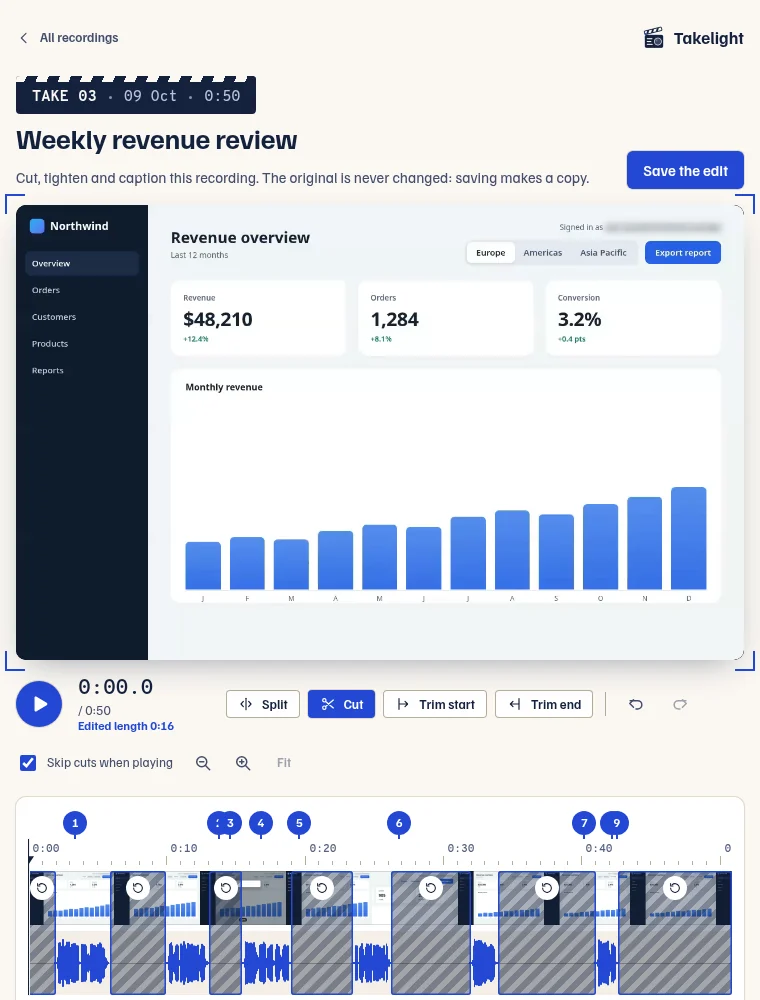
Cut the recording in the same place
Press Edit on any recording. Saving makes a new recording and leaves the original alone.
- A filmstrip and a waveform. Drag to select, then split, cut or trim, undo, and preview with the cuts skipped
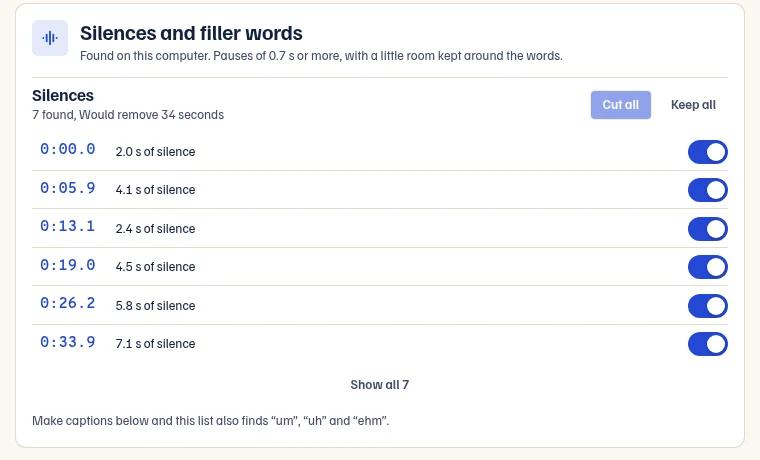
- Pauses of 0.7 seconds or more are marked on the timeline, and the ends can be trimmed
- Precise export lands every cut on the exact frame. Quick export copies the video without re-encoding and is almost instant
Real MP4 files that stay on your computer
Takelight writes the video to disk as it records, so memory use stays flat on long recordings.
- H.264 video and AAC audio (Opus on Linux), with the index written at the end, so you can jump anywhere in a browser, on a phone or in an editor
- No watermark. No sign-in
- If the tab closes, Edge crashes or the power goes, the next recorder page offers Recover last recording. The last few seconds may be missing
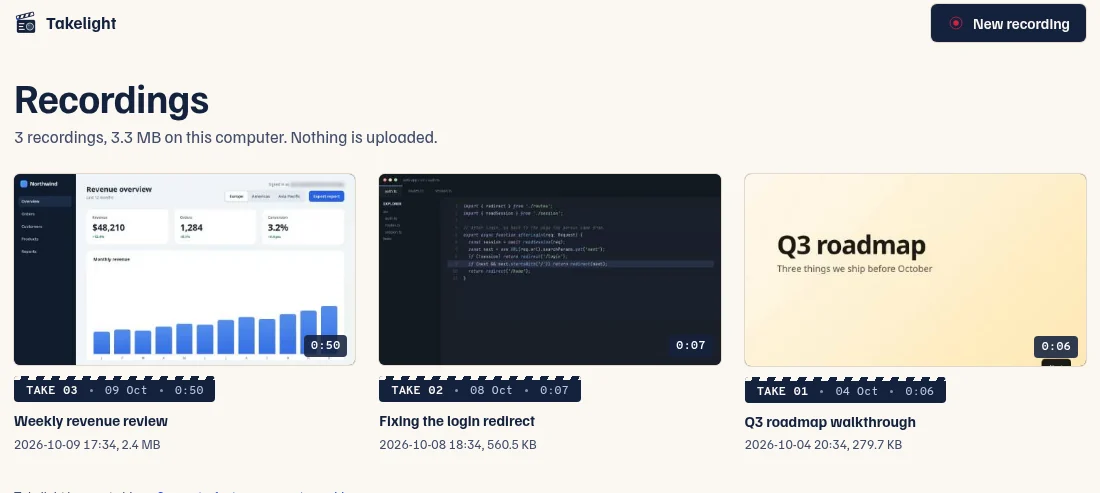
- A Recordings page to play, edit, rename, download and delete. Nothing is uploaded
Free makes guides from your clicks
Free has no watermark and no account, and keeps ten guides. Pro adds video recording, unlimited guides, Word and PDF files, your logo on guides, handbooks, and burned-in captions in the editor.
| Feature | Free | Pro |
|---|---|---|
| Instant guide: click through a task, no video | Included | Included |
| Picture editor: crop, zoom, box, arrow, blur and text | Included | Included |
| Guides kept | Up to 10 | No limit |
| Guide copied for Google Docs or Notion | Up to 5 steps | Included |
| Guide as one HTML file | Included | Included |
| Guide as Markdown with images | Included | Included |
| Guide as a Word file | Not included | Included |
| Guide as a PDF, and your logo, colour and footer on guides | Not included | Included |
| Handbook: several guides as one offline site | Not included | Included |
| Record video into a guide: tab, window or screen, and video files | Not included | Included |
| Video extras: click rings, shortcut keys, blur, chapters, camera bubble, audio | Not included | Included |
| Video editor: trim, speed per range, poster frame and caption files (.srt and .vtt) | Included | Included |
| Cuts in the middle | Up to 3 | No limit |
| Annotations on the video: text, arrow, box and step number | Up to 3 | No limit |
| Blur and pixelate boxes on the video | Included | Included |
| Saved size | 16:9 at 720p or 1080p | Also 9:16, 1:1, 4:5 and 4K |
| GIF from the editor | Up to 15 seconds | No limit |
| Silence and filler-word removal, and faster pauses | Not included | Included |
| Auto-zoom, studio look and cursor effects in the saved video | Not included | Included |
| Camera layouts: shape, size, corner, hide or full frame | Not included | Included |
| Several recordings in one video, and music under the voice | Not included | Included |
| Crash recovery of a recording | Not included | Included |
| Captions burned into the video | Not included | Included |
| Browsers per license | Not applicable | Up to 3 |
| Price |
€0 forever No account, no card Add to Edge |
€69 for a year €39 for 6 months, €139 for Pro forever Get 6 months, €39 Get Pro forever, €139 Get 1 year, €69 |
7 days of Pro, free. PDF, Word, handbooks and copying more than 5 steps need a paid pass. See how buying works, or compare Takelight with Loom, Screenity and Tella.
Before you install
- Is it free, with no watermark and no account?
- Yes. Free needs no account and puts no watermark on a guide. It keeps ten guides, and recording video is part of Pro.
- How is a guide made?
- Press Start guide in the toolbar, click through the task and press Stop. Each click, typed field and page change becomes a step with a screenshot and a title. Copy it for Google Docs or Notion (up to 5 steps on Free) or export it as Markdown with images or one HTML file for free, or export it as a Word file or PDF with Pro. With Pro, a video recorded with Record this tab makes steps the same way.
- Is there a watermark?
- No, not on the free plan and not on Pro.
- Where are my guides stored?
- On your computer, in your browser's extension storage. Open them from the library. Nothing is uploaded.
- What does Start guide work on?
- Normal web pages in the tab in front, across sites. Browser pages and extension stores cannot be captured. The pictures are screenshots of the visible tab, and you can crop, zoom, box, arrow, blur or label them.
- Do captions send my sound anywhere?
- No. The speech model is part of the extension and runs on your computer, so there is no account and nothing to download. The first time you make captions the model takes a moment to load. The transcript and the .srt and .vtt files are free; burning captions into the video is Pro.
- How does blur work in a video?
- With Blur sensitive info ticked while you record a video (Pro), the extension finds emails, phone numbers, IBANs, card numbers, API keys and password fields in the page and blurs them in the page itself, so the video shows them blurred. It reads the page's text on your computer and sends nothing anywhere. Text inside images is not read, so look at the video before you share it. Alt+click blurs anything else. In a guide, the Blur tool covers any part of a picture.
- What does the video editor do?
- Trim, cut the middle, speed up a range, mark the picture with text, arrows, boxes and blur, join recordings, add music, and make captions on your computer. Free keeps trimming, 3 cuts in the middle, 3 annotations besides blur, 16:9 up to 1080p and GIFs up to 15 seconds. Pro lifts those limits and adds silence and filler-word removal, burned-in captions, auto-zoom, studio look, cursor effects, camera layouts, 9:16, 1:1, 4:5 and 4K.
- What happens if Edge crashes while I record video?
- The file is written to disk as you record. If the tab closes, Edge crashes or the power goes, the next recorder page offers Recover last recording and rebuilds a playable MP4 from what reached the disk. The last few seconds before the interruption may be missing.
- What do I need to run it?
- Edge 116 or newer. The MP4 needs H.264 encoding on your computer. If it is missing, the recording is saved as WebM and the page says so before you start. If AAC audio is missing, the sound is saved as Opus and the page says so.
- Can a video include system audio?
- Tab audio works on every system. Whole-system audio is offered by Edge on Windows, and you tick Share audio in Edge's dialog.
- Does it record what I type?
- No. The key labels show shortcuts and named keys such as Enter, and letters typed into fields are never shown or saved. A guide step says Type in the "Email" field and never what was typed. Nothing is read from password, card-number or one-time-code fields.
- What leaves my computer?
- Your license key, when a Pro pass is activated or re-checked. Nothing else. Screen, window, tab, microphone and camera content, the sound of a recording and its transcript are never uploaded. Details in the privacy policy.
- How long does Pro last?
- A 6-month pass gives six months of Pro, a year pass twelve months, and Pro forever lasts as long as Takelight is offered. After a 6-month or year pass, Takelight goes back to the free plan. The key works in up to 3 browsers.
- Where is the full price list?
- On the pricing page. To see how Takelight differs from other recorders, read Takelight vs Loom, vs Screenity and vs Tella, or the guides.
- Something missing?
- What’s next: roadmap.
- Where do I get help?
- Write to [email protected].